Get started with HandRaise
Sign in on your iPhone and in Chrome, turn on notifications and the mic, and make a test call to your own cell.
HandRaise runs in two places: the iPhone app and the Chrome extension. Use either one, or both. Calls ring on both at once, and your goals and folders are the same on each.
1. Sign in on your iPhone
- Open the HandRaise app from the link our team sends you.
- Sign in with the email and password for your HandRaise account.
- When it asks to send notifications, tap Allow. That's how new texts and missed calls reach you.
- When it asks for the microphone, tap Allow. Calls can't connect without it.
2. Sign in on Chrome
- Add HandRaise to Chrome from the link our team sends you.
- Click the HandRaise icon in the Chrome toolbar. Pin it so it's always one click away.
- Sign in with the same email and password.
- When Chrome asks for the microphone, click Allow.
3. Make a test call
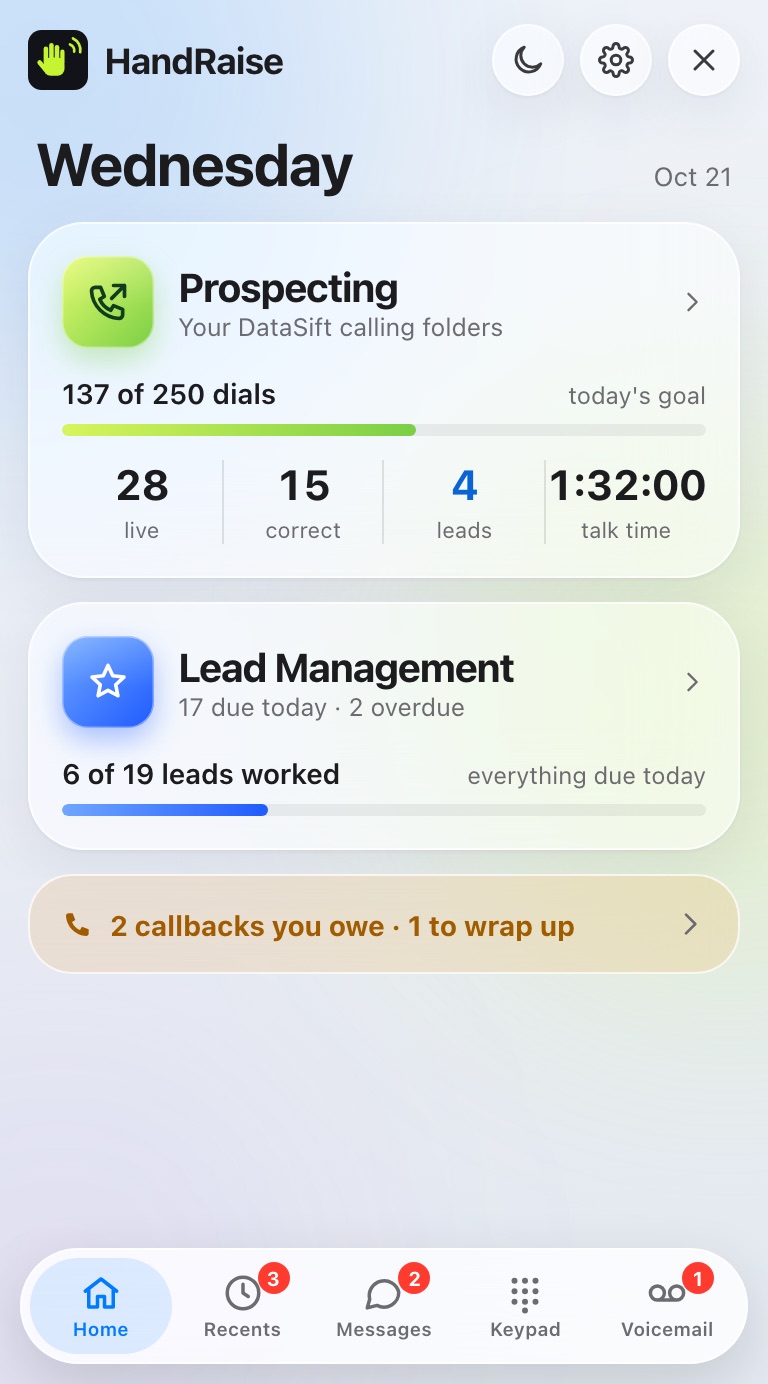
Before you call sellers, call yourself. 1. Open Prospecting. 2. Leave Call real sellers off. With it off, only the test record dials. 3. Tap the Test record folder. It calls your own cell, the mobile on your HandRaise profile. 4. Answer on your cell, say a few words, hang up, and save the result.
When that works, turn Call real sellers on and pick a real folder.
Forgot your password? Tap Forgot password on the sign-in screen, or go to handraisephone.com/login.
Ask the help chat in your dashboard, or reach our team and we'll sort it out.